Opportunities
Opportunity pipeline settings, swimlane configuration, stages, categories, sources, and loss reasons.
Written By Victor Raessen
Last updated 21 days ago
Opportunities
Configure your opportunity pipeline — stages, categories, sources, loss reasons, and swimlane layout.
These settings are central to how Salesbuildr automates your sales workflow. When you create and manage quotes, the underlying quote drives the opportunity: the quote status (draft, sent, approved, declined, expired) automatically updates the opportunity stage and status through your Quotes stage mapping. One-time and recurring line items on the quote determine the opportunity value. Combined with the probability and weighting you configure per pipeline stage, this feeds directly into your sales forecast and pipeline reporting — all without manual updates.
Navigate to Admin > Opportunities to access the full configuration page. The page is organized into tabs.
PSA integration note: If you have a PSA connected, pipeline stages, categories, sources, and loss reasons are imported from your PSA during the initial sync. Fields synced from your PSA are read-only in Salesbuildr — to modify them, update them in your PSA first, then re-sync via Admin > Integrations > Synchronize. You can still add new values locally and reorder all items. The specific fields imported vary by PSA:
Autotask — Pipeline stages, categories, sources, and loss reasons
ConnectWise — Pipeline stages, categories (from CW opportunity types), and sources (from CW marketing campaigns)
HaloPSA — Pipeline stages, categories (from Halo opportunity types), and opportunity teams. Additional tabs for teams and types appear when HaloPSA is connected.
PSA-specific settings
Depending on your connected PSA, additional tabs and behaviors may be available on this page. Each PSA also has its own integration-specific configuration under Admin > Integrations.
HaloPSA — Two additional tabs appear: Opportunity teams (team assignments imported from Halo, used for routing and ownership) and Opportunity types (type classifications from Halo that map to categories in Salesbuildr, with additional fields like default team and target date requirements). See HaloPSA Configuration for Halo-specific integration settings.
Autotask — Opportunity fields include user-defined field (UDF) mapping and additional data point configuration. See Autotask Configuration for Autotask-specific settings.
ConnectWise — Opportunity types map to categories, and marketing campaigns map to sources. Status mapping between ConnectWise and Salesbuildr is configured in the integration settings. See ConnectWise Configuration for ConnectWise-specific settings.
Settings
The Settings tab controls default values for new opportunities and access restrictions.
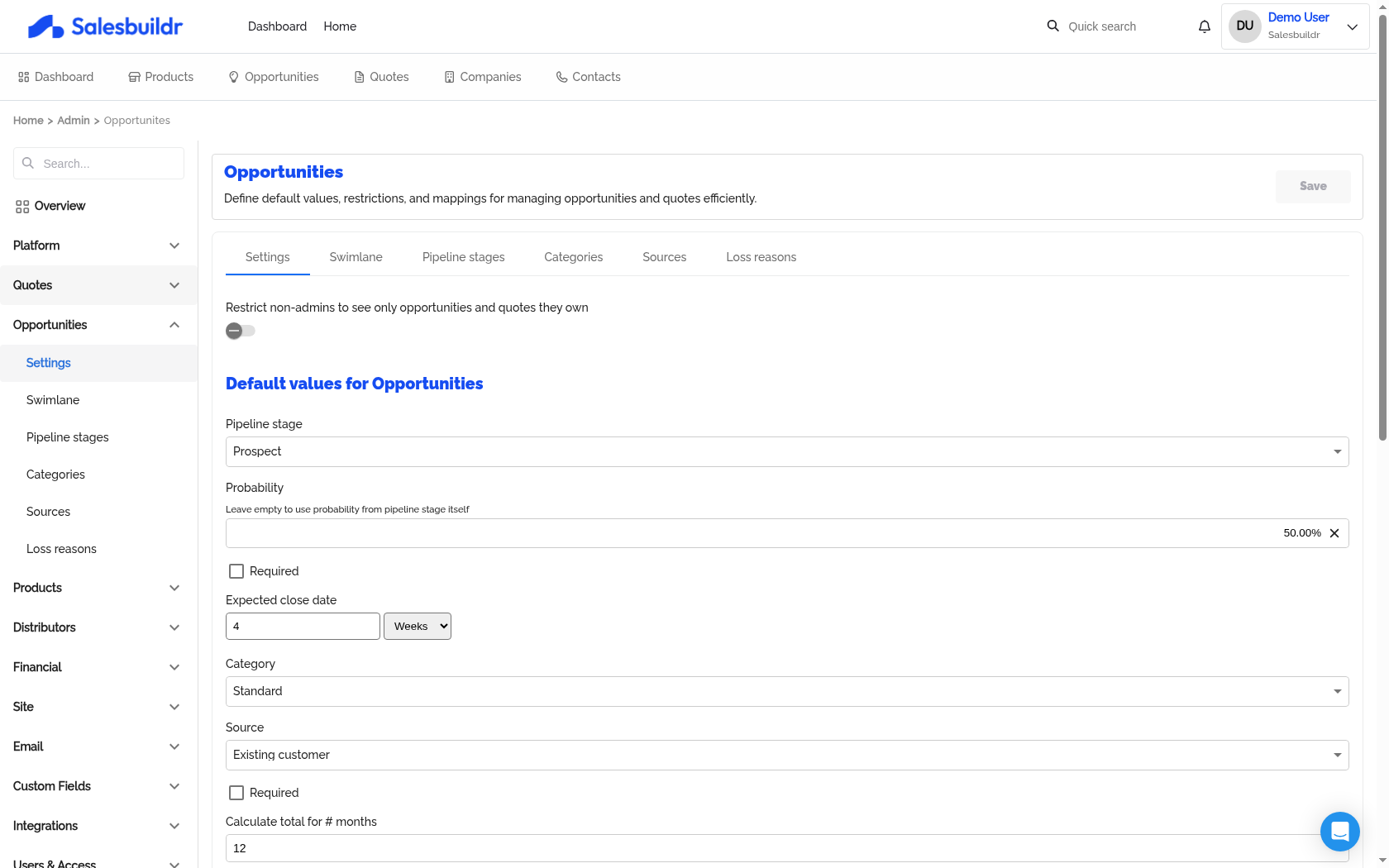
Admin > Opportunities > Settings — Mar 1, 2026, 5:45 PM UTC
Access control:
Default values for new opportunities:
These defaults apply automatically to new opportunities but can be overridden per opportunity.
Quote Stages Map With Opportunity Stages:
Configure how quote status changes automatically update the parent opportunity. For each quote status (Draft, Sent, Approved, Declined, Expired), map it to a specific pipeline stage and opportunity status.
This auto-update only triggers for the primary quote. If no mapping is configured, no automatic updates occur. When the pipeline stage changes, the probability auto-updates to match the stage's configured probability (unless set manually).
Ticket-to-opportunity mapping:
Note: If there are services on the quote, the opportunity stage will not be automatically moved to the configured stage.
A separate row controls what happens when a fulfillment ticket is created from a quote — set the pipeline stage and status to apply at that point.
This is typically used to mark the opportunity as Closed once the deal moves into fulfillment, but the stage and status are fully configurable. Adjust this if your workflow requires purchasing, installation, or implementation to be completed before the opportunity is considered closed — in that case, map the fulfillment-ticket trigger to an interim stage (e.g., "In Implementation") instead of Closed.
Note: If there are services on the quote, the opportunity stage will not be automatically moved to the configured stage.
Note: Closed opportunities are not displayed in the Swimlane (Kanban) view. If you need to track post-fulfillment opportunities visually, map the fulfillment-ticket trigger to a non-closed stage, or use the opportunity overview list instead. You can submit a feature request via the Feedback section inside Salesbuildr.
Tip: If opportunities are closing inconsistently after fulfillment tickets are created, first check the configured stage/status in this row, then confirm that all users are creating fulfillment tickets through the same workflow (rather than changing the opportunity manually).

Opportunity settings showing quote-to-opportunity stage mapping and stage after ticket creation Feb 20, 2026
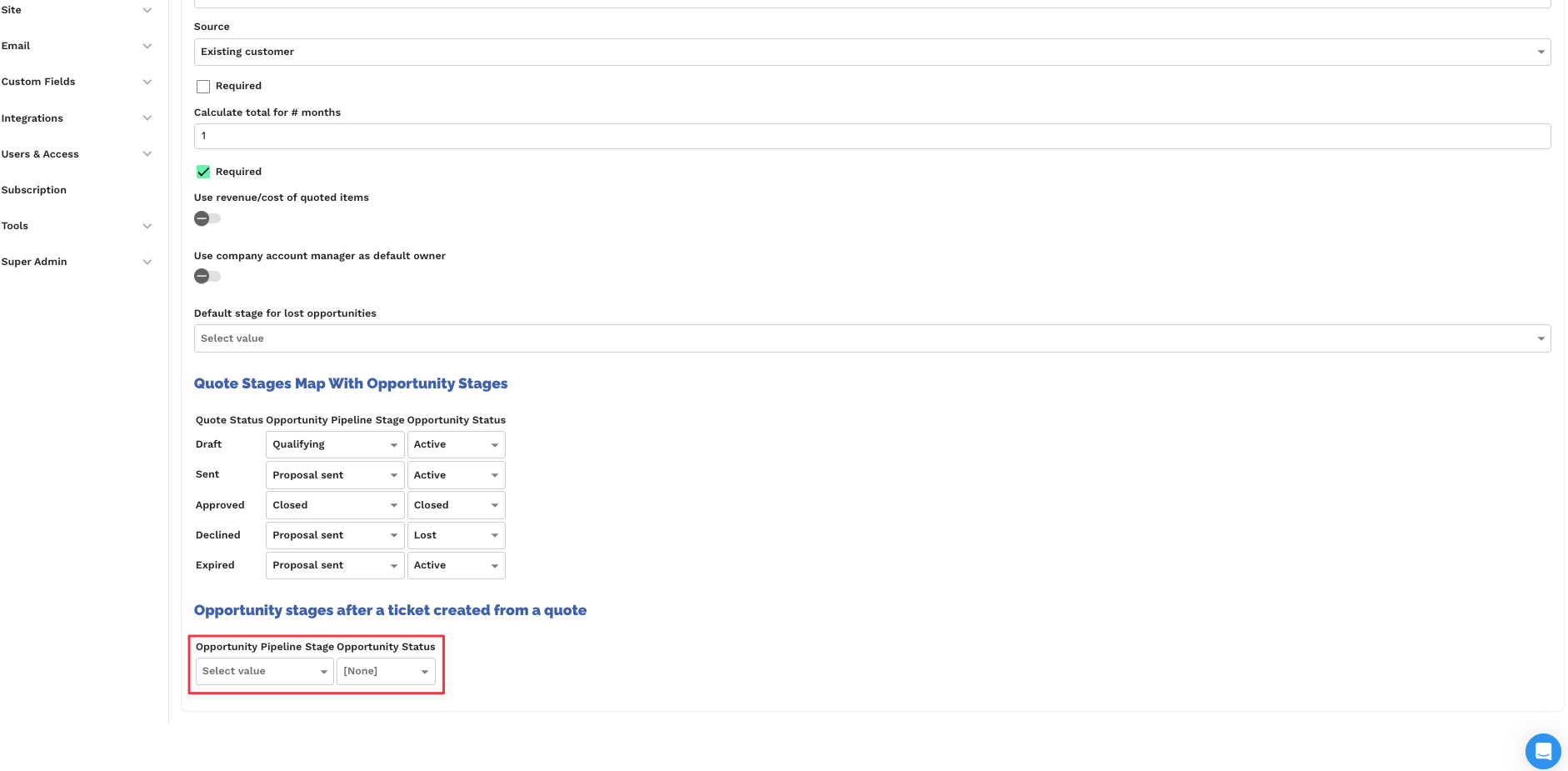
Quote stages mapped to opportunity stages with ticket creation stage highlighted Feb 20, 2026
Swimlane
Configure which pipeline stages appear as columns in the swimlane (Kanban) view.
Select the pipeline stages to show by toggling their checkboxes
Leave all unchecked to show all stages
Note: Opportunities with a Closed status are not loaded into the swimlane, regardless of which stages are selected here. This includes opportunities auto-closed by the fulfillment-ticket trigger.
Only opportunities in selected stages are loaded (maximum 1000)
This is useful for focusing the swimlane on active sales stages while hiding stages like "Implemented" or "Lost."

Admin > Opportunities > Swimlane — Mar 1, 2026, 5:45 PM UTC
Pipeline Stages
Manage the pipeline stages that opportunities move through. The table supports:
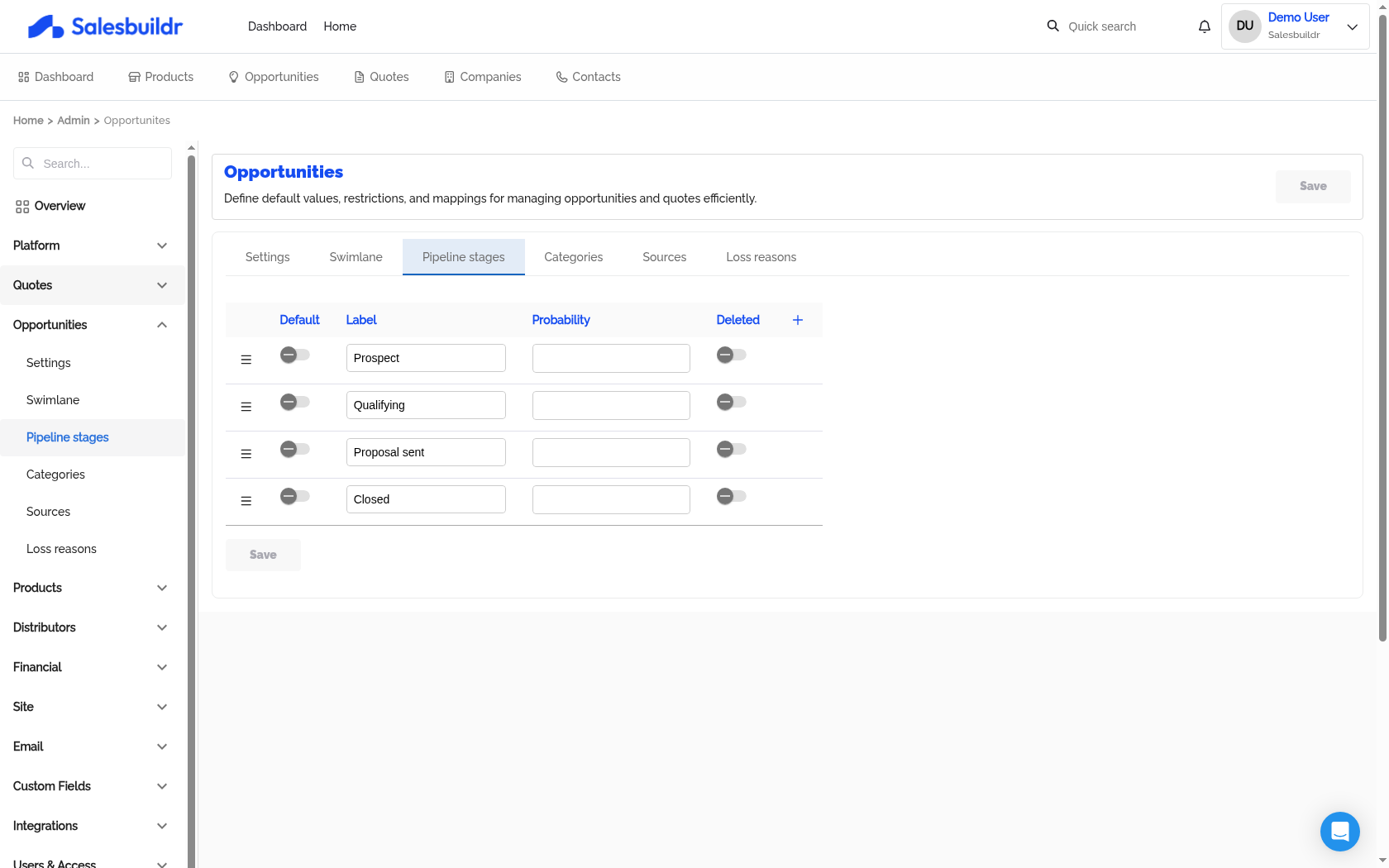
Admin > Opportunities > Pipeline stages — Mar 1, 2026, 5:45 PM UTC
Click the + button to add a new stage. Changes are saved in bulk when you click Save.
Note: Pipeline stages imported from your PSA cannot be renamed or deleted in Salesbuildr — manage them in your PSA and re-sync. This applies to all three supported PSAs (Autotask, ConnectWise, and HaloPSA). You can add local stages and reorder all stages freely.
Categories
Manage opportunity categories (separate from product categories). The table supports the same controls as pipeline stages: drag-and-drop ordering, default selection, label editing, and soft-delete.
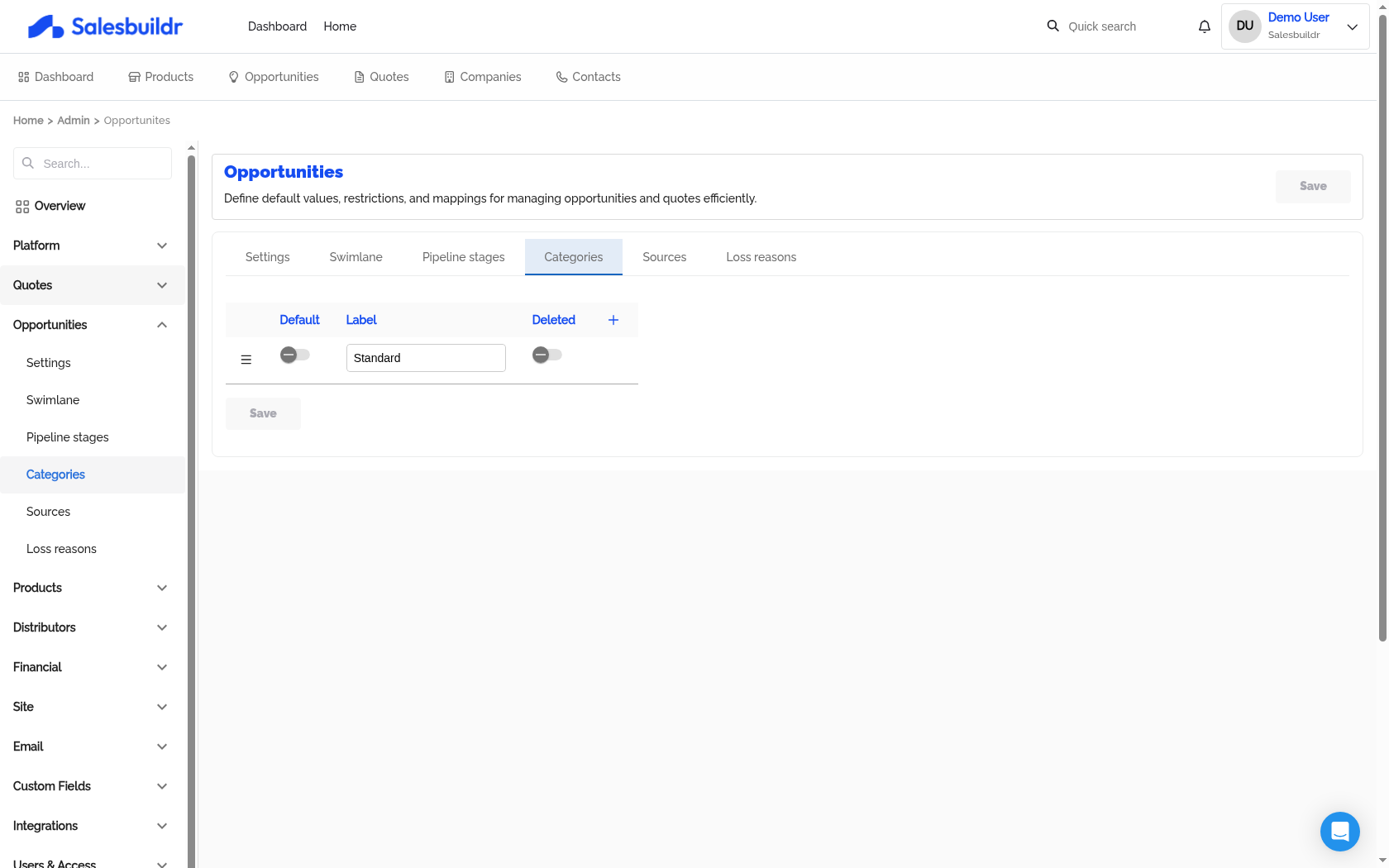
Admin > Opportunities > Categories — Mar 1, 2026, 5:45 PM UTC
Opportunity categories are used for filtering and reporting. All three PSAs sync opportunity categories: Autotask from its category picklist, ConnectWise from opportunity types, and HaloPSA from ticket types marked for opportunities.
For HaloPSA users, categories are imported from Halo "Opportunity Types" (see Integrations) and may include a default team assignment — when an opportunity is created with that category, the team is auto-assigned.
Sources
Manage lead/opportunity sources (e.g., "Referral", "Website", "Cold Call"). Same table controls: drag ordering, default, label, soft-delete.
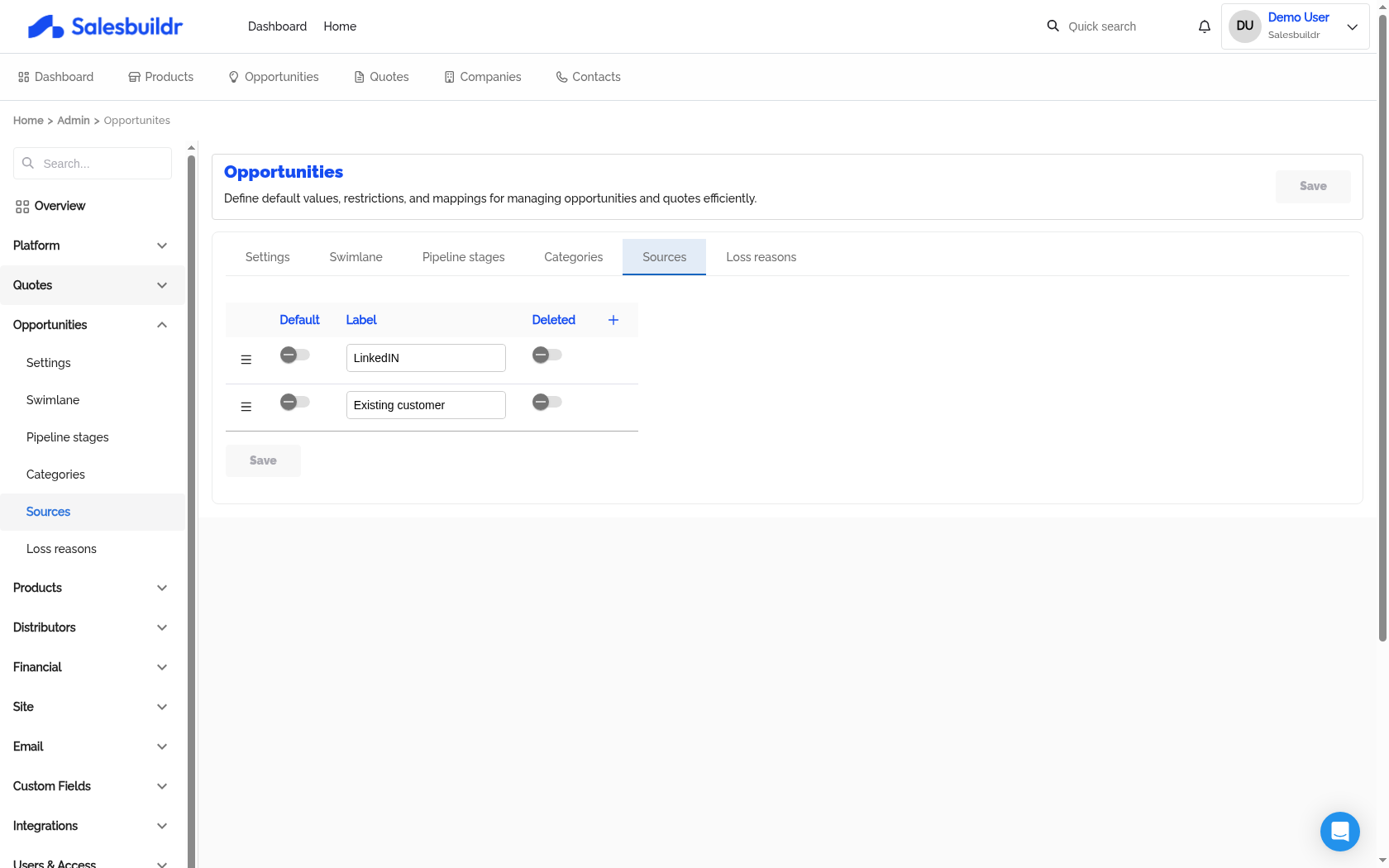
Admin > Opportunities > Sources — Mar 1, 2026, 5:45 PM UTC
Sources help track where opportunities originate and are available as filters on the opportunity overview page. Autotask and ConnectWise import sources from the PSA (ConnectWise maps marketing campaigns to sources). HaloPSA does not sync sources — manage them directly in Salesbuildr.
Loss Reasons
Manage loss reasons that must be selected when marking an opportunity as lost (e.g., "Price", "Competitor", "No Budget", "Timing"). Same table controls: drag ordering, default, label, soft-delete.

Admin > Opportunities > Loss reasons — Mar 1, 2026, 5:45 PM UTC
Only Autotask imports loss reasons from the PSA. ConnectWise and HaloPSA users manage loss reasons directly in Salesbuildr.
Loss reasons feed into reporting and help identify patterns in lost deals.
See also
Managing Opportunities — Opportunities
Before Your First Call — Getting Started
Custom Fields — Admin
Opportunities — Opportunities
Procurement — Post-Sale