Distributors
50+ distributor connections across 5 regions, priority ordering, product mapping, order integrations, and global pricing settings.
Written By Victor Raessen
Last updated 19 days ago
Configure distributor connections, set pricing priority, and manage product mapping. For browsing distributor products from within the catalog, see Marketplace and Cloud Marketplaces.
Adding a distributor feed
To connect a distributor, go to Admin > Distributors > Connections and click Add Connection.
You can connect distributors from multiple countries on a single instance. For example, an MSP operating in both Australia and the UK can connect Ingram Micro AU and Ingram Micro UK simultaneously. Each connection is scoped to its market, so pricing feeds remain country-specific. There is no limit on the number of distributor connections across different regions.
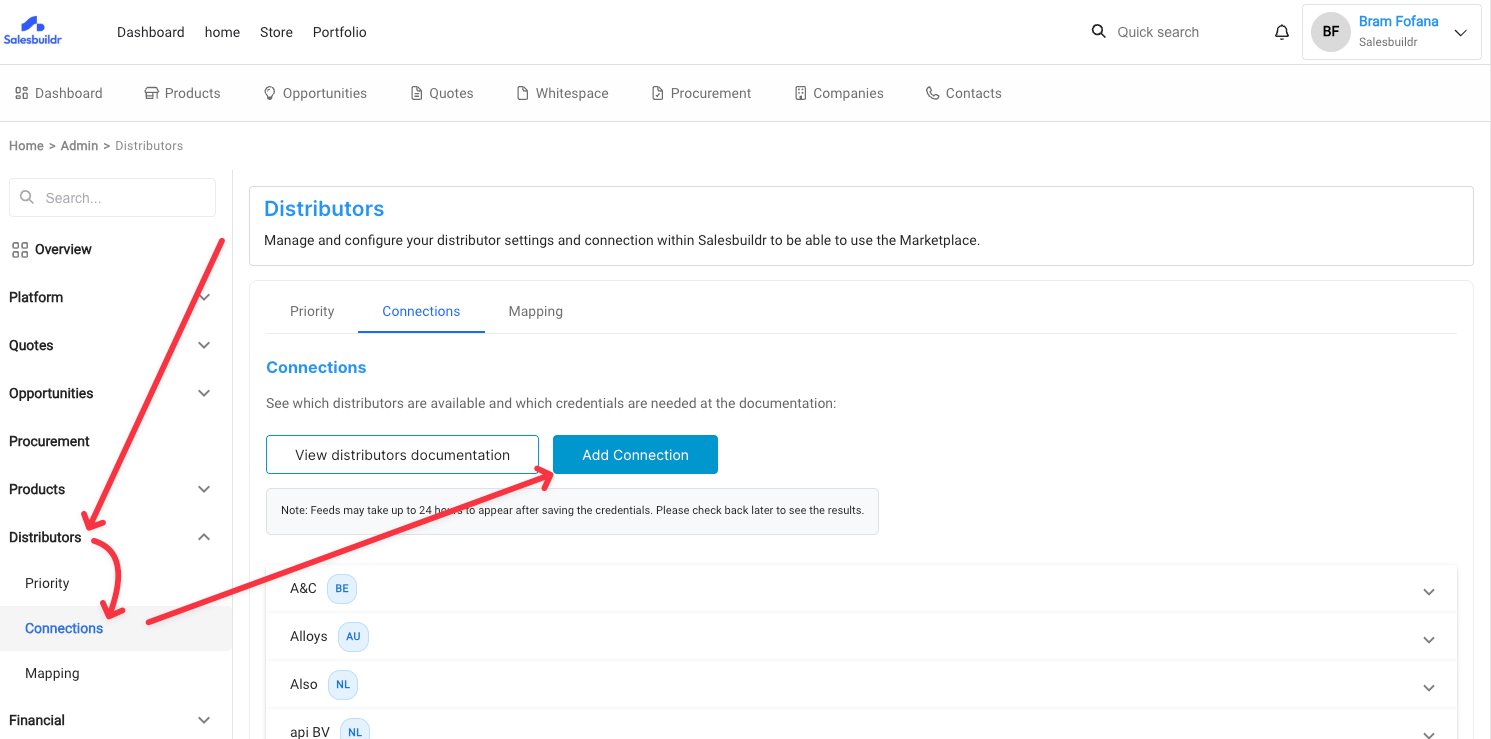
A modal will open showing all available distributors grouped by market. Select your country, then click the distributor you want to configure. The right panel will show the required credentials and setup instructions specific to that distributor.
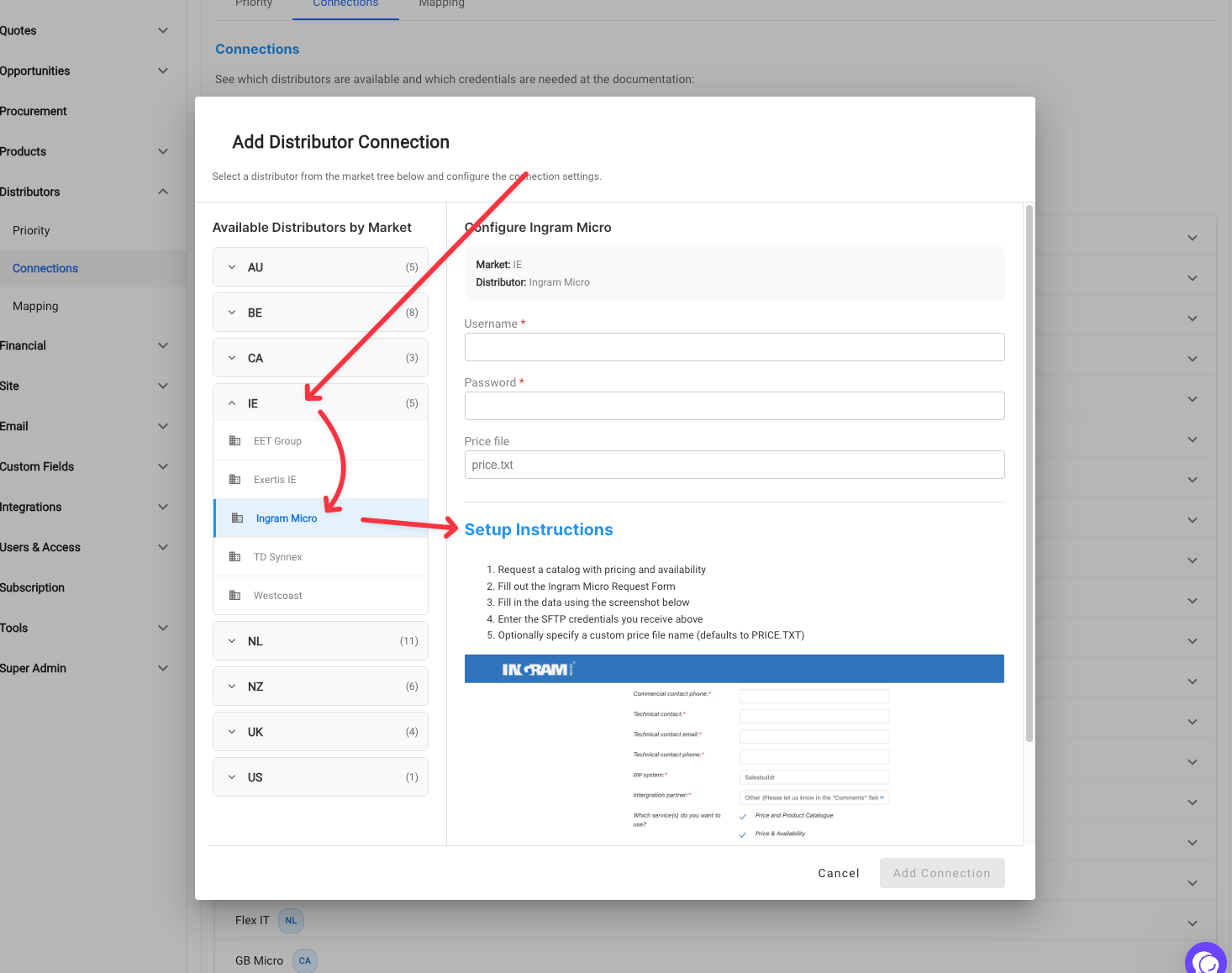
Fill in the credentials and click Add Connection to save. Note that feeds can take up to 24 hours to appear after saving.
Requesting a new distributor feed
Navigate to your profile in the upper right corner
Click the profile
Select ‘Feedback’
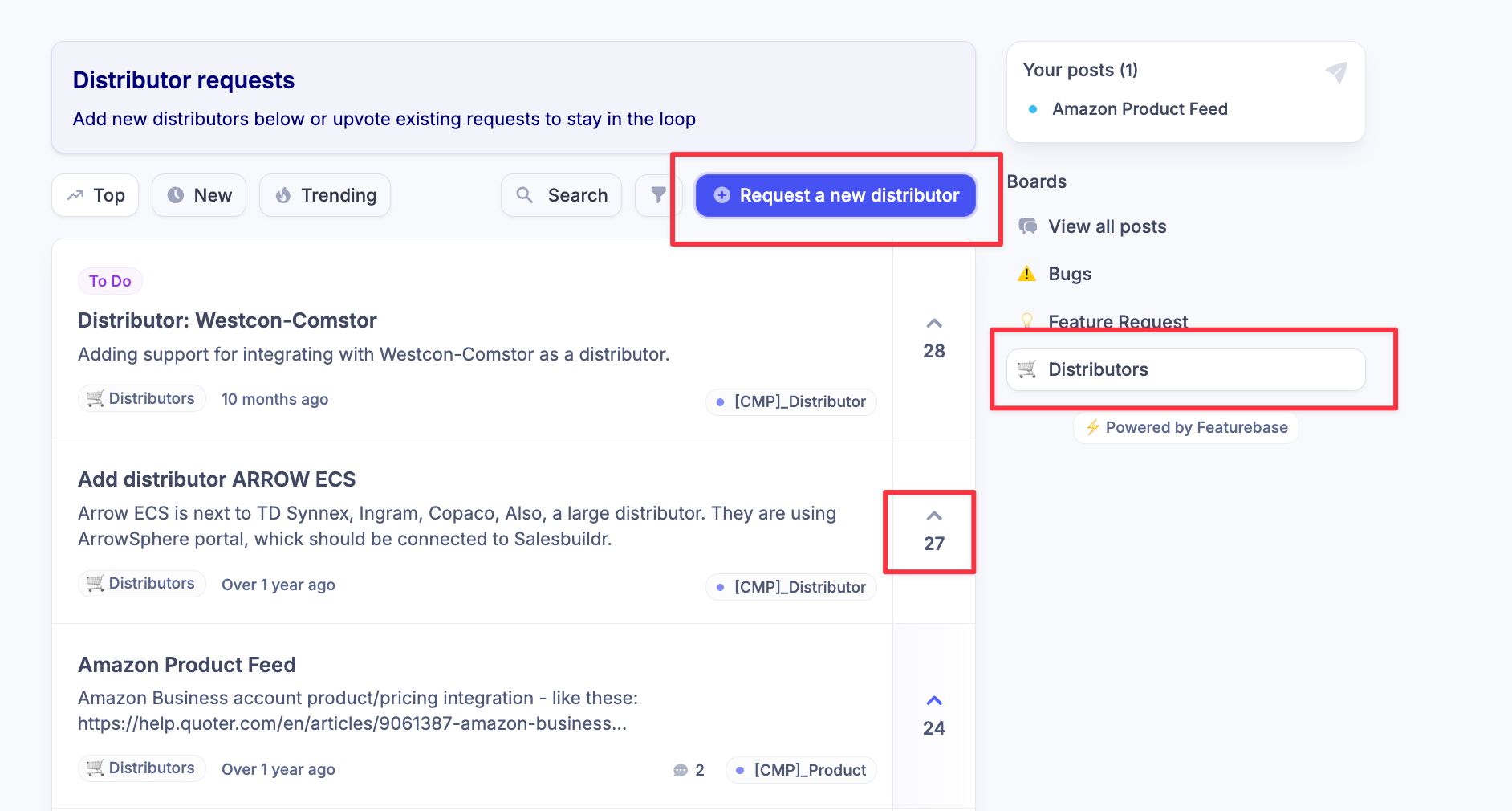
When the window opens, look on the right side and select ‘Distributor’
If your distributor is displayed, it is being worked on and you may UPVOTE it. This indicates to us the level of interest.
If your distributor is NOT listed, then use the ‘Request a new distributor’ button.
To complete the form properly you will need to have the following information ready
Distributor Name
Distributor website
Distributor technical contact person/email
Integration method (FTP/API/Email)
Choose hardware/services (Hardware will be the most common)
Credentials (FTP un and pw) or API link
Distributor integration documentation (not required but very helpful for our developers)
Click ‘Submit Post’
How long does it take? If all the information we need is provided we normally process requests in 2-3 weeks.
Managing existing distributor connections
Navigate to Admin > Distributors for three configuration areas:
Priority — set your preferred distributor ordering. When multiple distributors carry the same product, Salesbuildr uses your priority list to determine the default selection. You can also mark distributors as ignored.
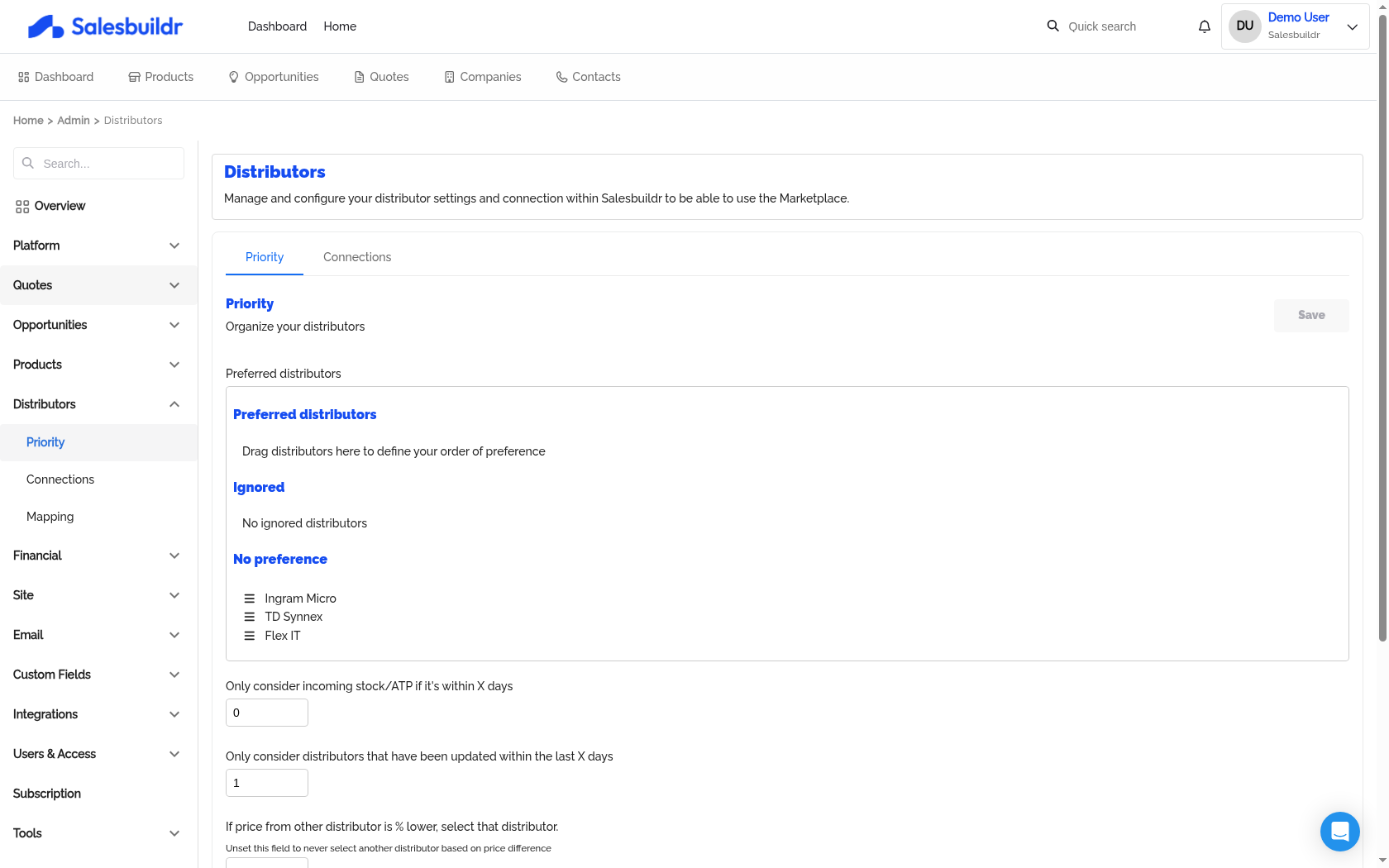
Admin > Distributors > Priority — Mar 1, 2026, 6:20 PM UTC
Connections — connect to individual distributors by entering their API credentials. Each distributor has market-specific configuration fields. Use the Verify button to test your credentials.
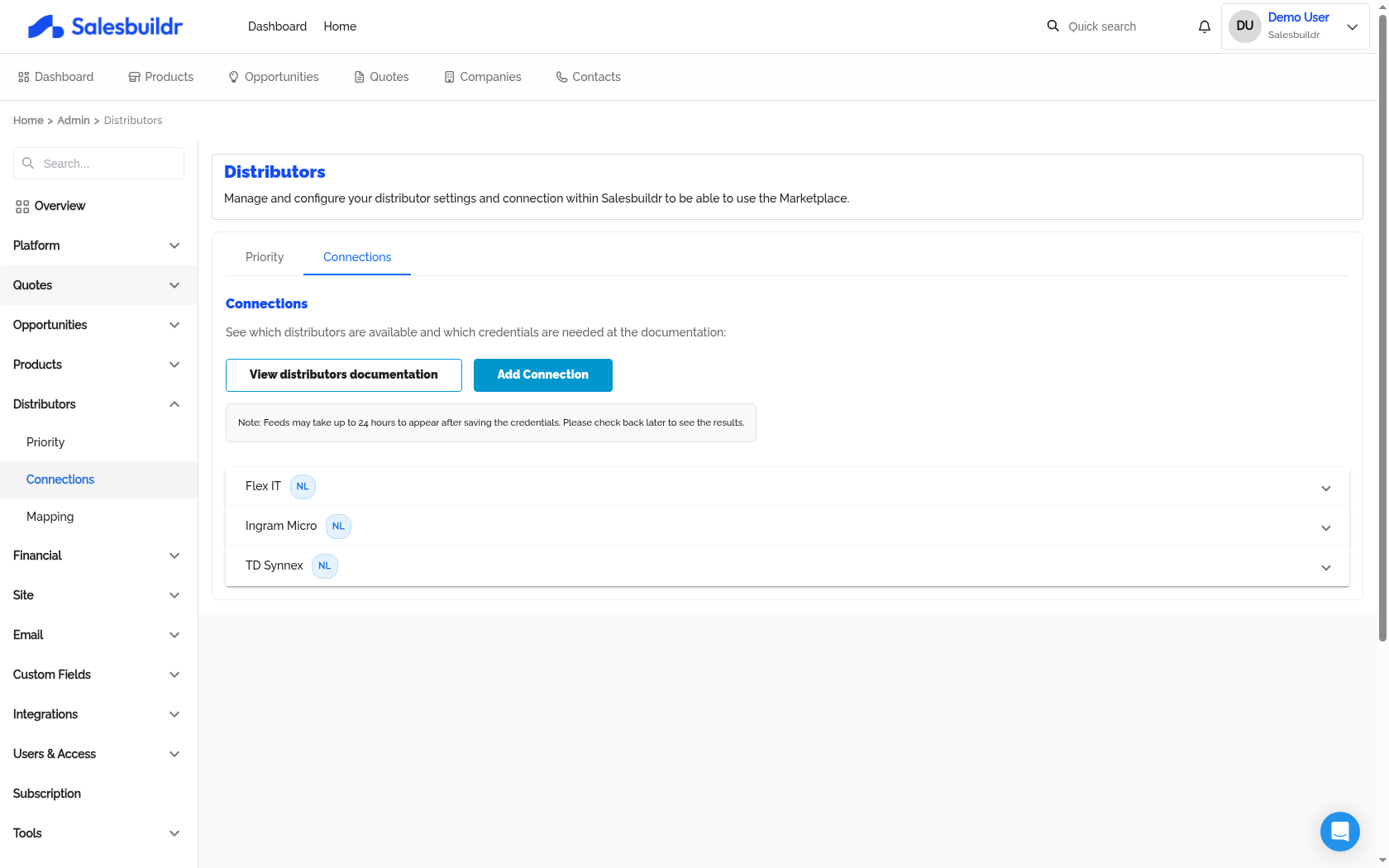
Admin > Distributors > Connections — Mar 1, 2026, 6:20 PM UTC
Mapping — map distributor manufacturer names to Salesbuildr manufacturers. This ensures products from different distributors are grouped correctly. (Visible when procurement or certain integrations are enabled.)
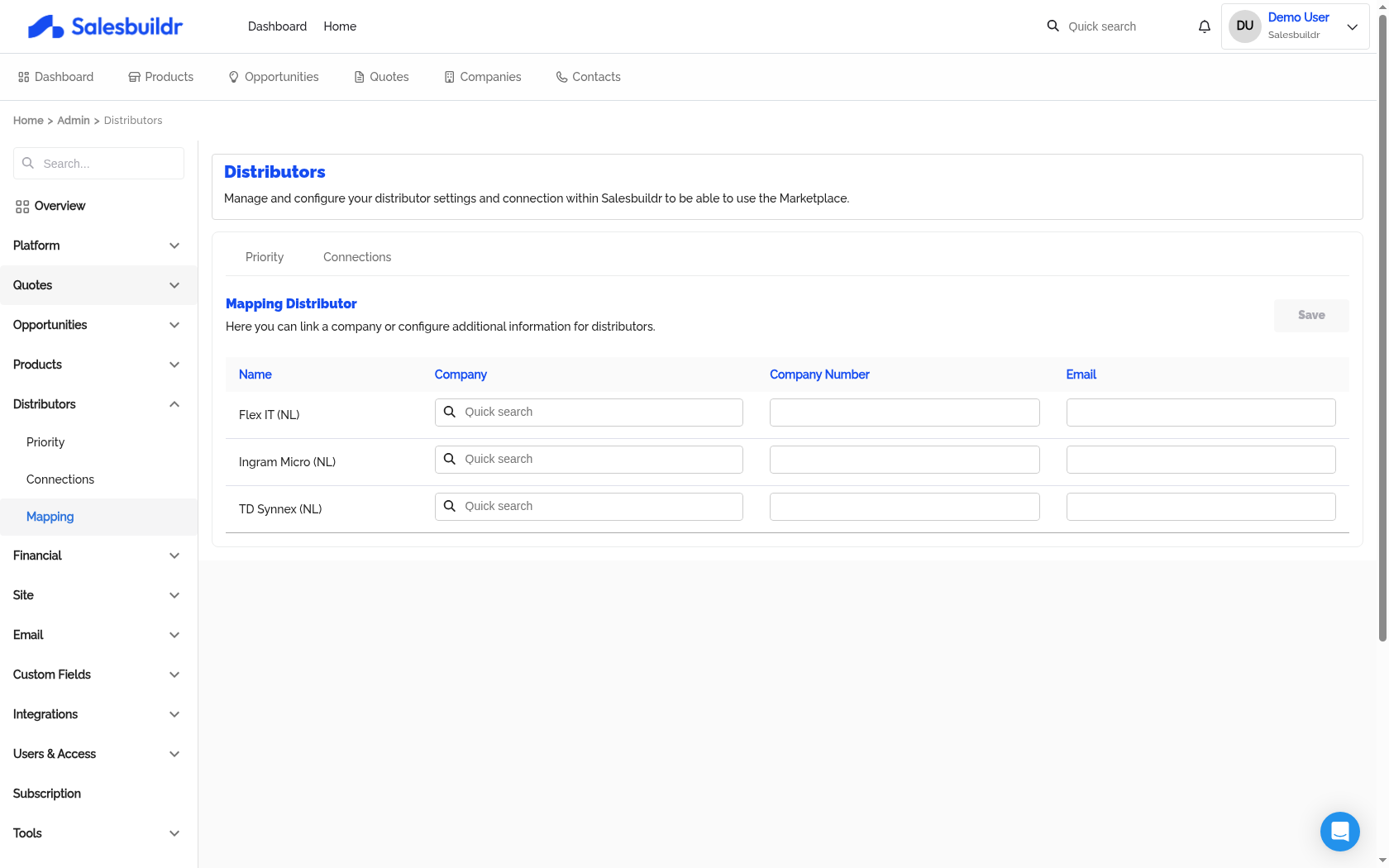
Admin > Distributors > Mapping — Mar 1, 2026, 6:20 PM UTC
Global settings
How distributor price sync works
Salesbuildr does not update distributor prices on a fixed schedule. Instead, prices and inventory are updated whenever the distributor publishes a new feed. If a distributor updates their feed hourly, Salesbuildr reflects that hourly. If they update weekly, Salesbuildr updates weekly.
What to check if prices look stale:
Check the last updated timestamp shown next to the distributor under Admin > Distributors > Connections — this reflects the last time Salesbuildr received a new feed from them.
If the timestamp is older than expected, contact the distributor directly to confirm their feed publishing schedule.
If the distributor confirms they are publishing but prices still aren't updating, contact Salesbuildr support with the distributor name and last-known correct price date.
Supported distributors
The following distributors are currently available in Salesbuildr, grouped by market.
Order integrations
Two distributors support direct ordering from within Salesbuildr:
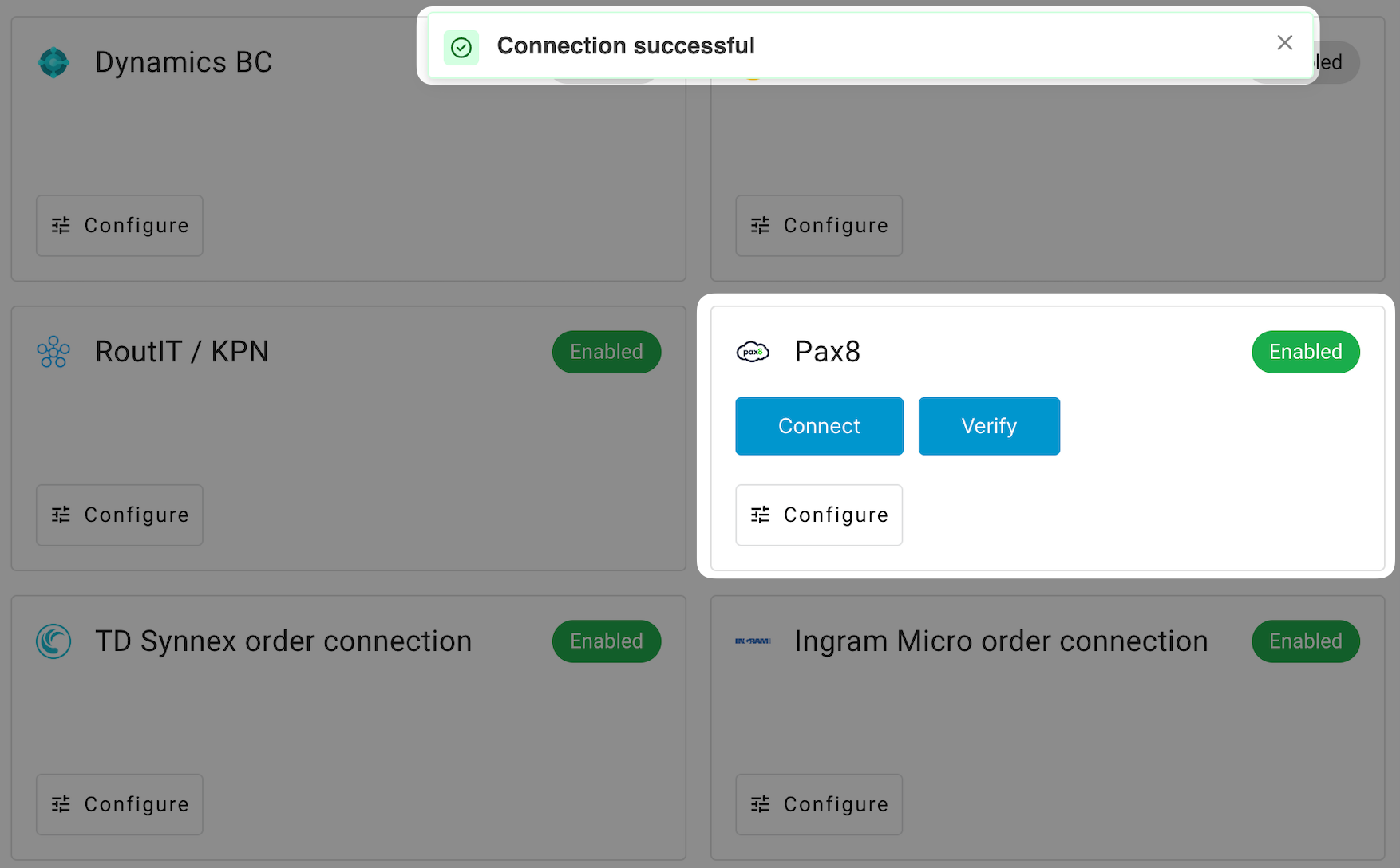
Integration manager showing Pax8 with Connect and Verify buttons Feb 20, 2026
TD Synnex order connection — configure per-country (NL, BE, UK, US). NL/BE/UK use API key authentication; US uses username and password. Requires a customer number and currency.
Ingram Micro order connection — configure with customer number, client ID, client secret, and country.
Both order connections are available when the procurement feature is enabled.
See also
Integrations — Integrations
Procurement — Admin
Products — Admin
After Onboarding — Getting Started
Before Your First Call — Getting Started